GitHub
Configuring GitHub as a Social Provider
In this section, we will show you how to provide GitHub as an option on your cidaas login page. After configuring GitHub as a social provider in cidaas, you will get a new option called
- Login with GitHub on the login page.
- Sign up with GitHub on the registration page.
On your login page.

The overall process in a nutshell would be,
- On cidaas admin portal: Get Return URL for GitHub.
- On GitHub developer console: Get client ID and client secret.
- On cidaas admin portal: Add the GitHub client ID and client secret in cidaas application and select appropriate cidaas applications for which you want to enable GitHub.
We'll guide you through the process steps — it's pretty easy.
GitHub setup
Get redirect URL for GitHub
In this section, you'll find steps on how to get the Github Allowed return URL from cidaas admin portal.
-
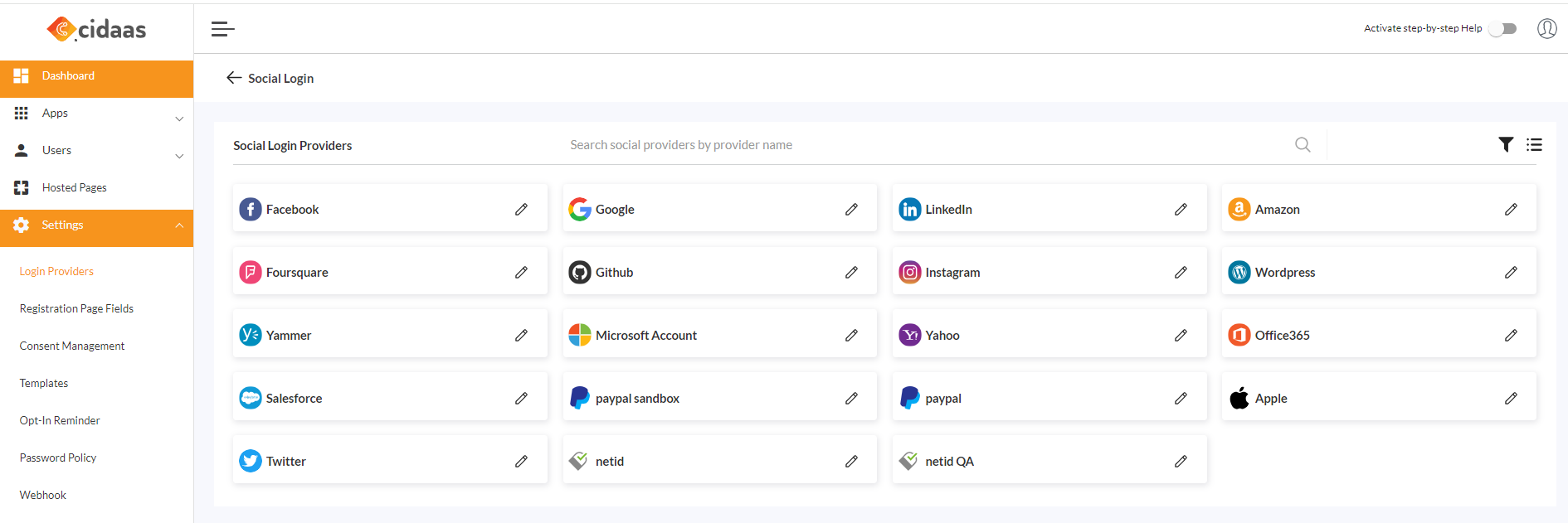
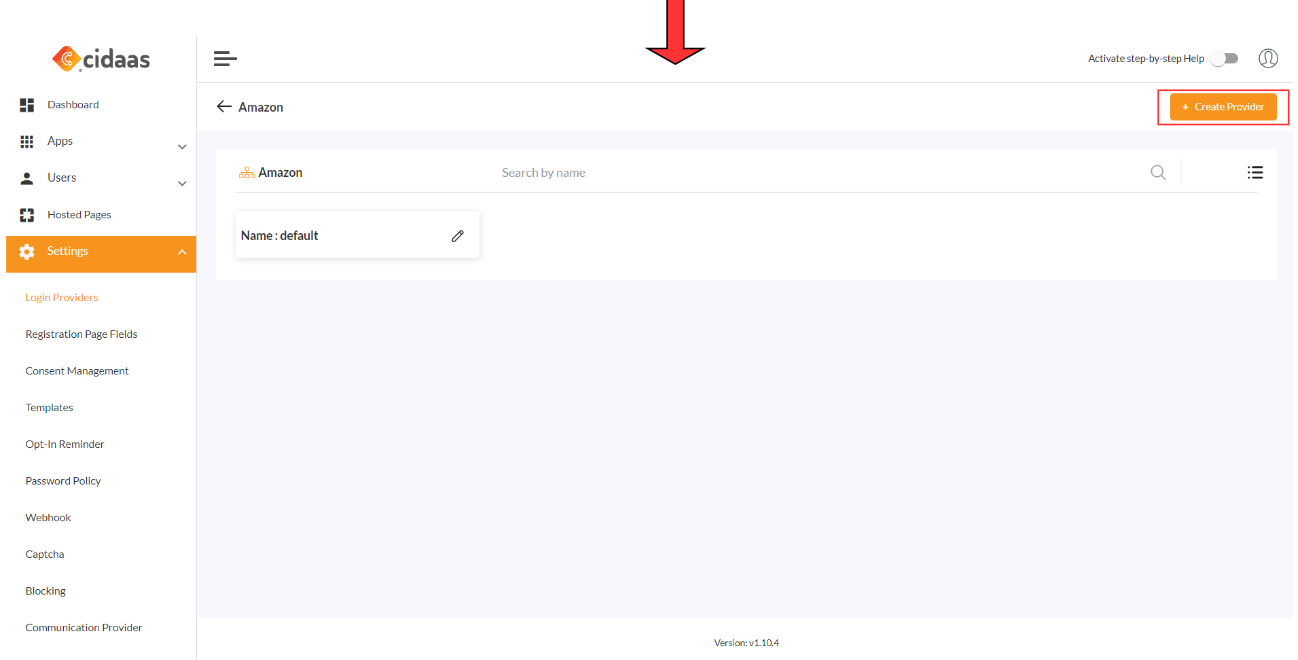
Log in to the cidaas Admin portal. Navigate to cidaas Admin dashboard -> Settings -> Login Providers -> Social Providers, select GitHub from the menu and click on Create provider.
-
Scroll down to the section "Configuration Steps for GitHub App," which will show Redirect URL. Copy it.

Generate client ID and client secret
-
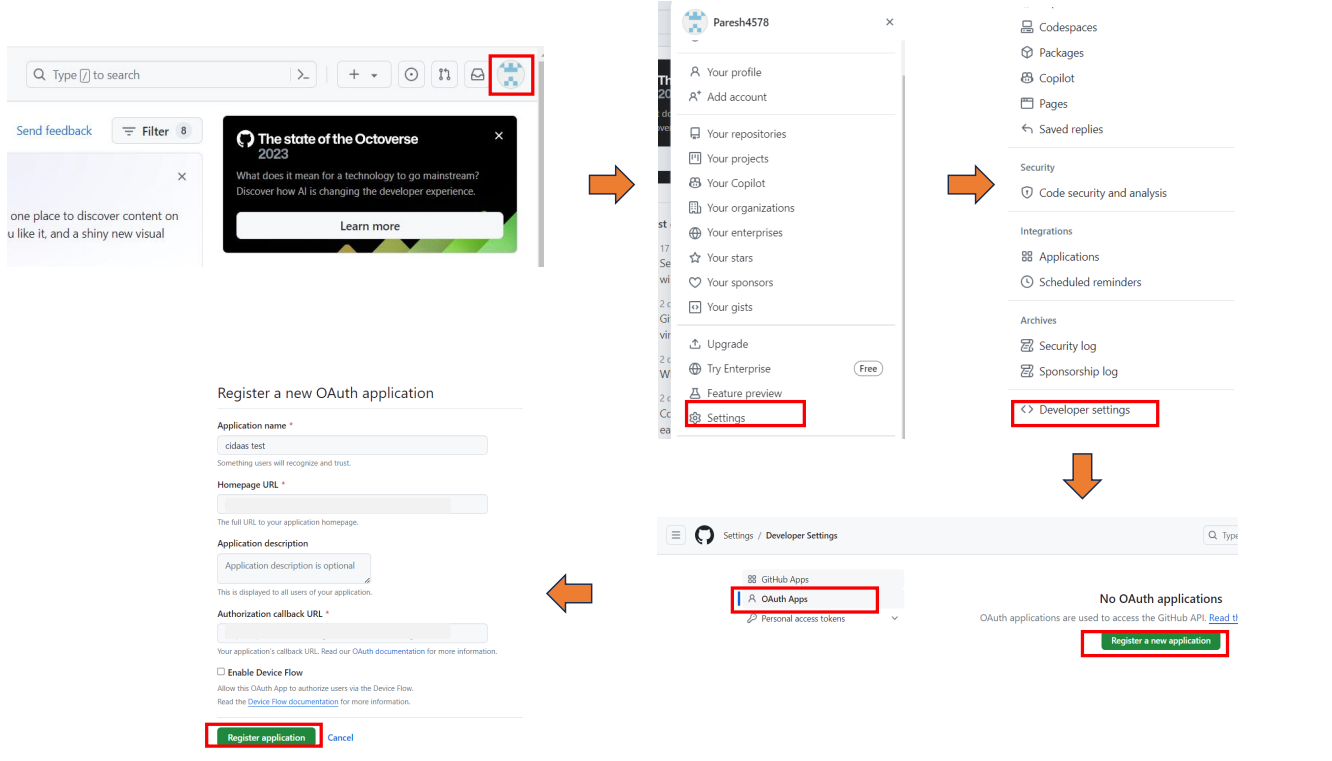
Log in to the GitHub developer console.
-
Click on your Profile picture > Settings.
-
Click on Developer settings > Oauth Apps > Register a new application.
-
Enter all the details and the redirect url that you obtained from the redirect url section, and click on the register application.
-
Copy the client ID and Secret.
-
Let us move to the cidaas setup section above. .
cidaas setup
Configure social provider setup in cidaas
In this section, you'll find steps on
- how to add client ID and client secret obtained from your GitHub account into your cidaas application and
- how to choose cidaas client applications for which you want to enable GitHub as a social provider.
-
Now, navigate to cidaas Admin dashboard -> Settings -> Login Providers -> Social Providers.
-
Click on GitHub > Create provider, enter the required details, and save.
- Enter the Client ID and Client secret acquired from the GitHub setup section.

-
After you save, you can select the application you want GitHub to use as a social provider.

-
GitHub is available as a social provider for your application.
Reference Link how to configure other providers?
Need help implementing this?
Please contact us on our Developer Support Page.