Office 365
Configuring Office365 as a Social Provider
In this section, we will show you how to provide an option to login with Office365 on your cidaas Login page.

By configuring Office 365 as a social provider in cidaas, you will get a new option called Log in with Office365 on the log in page and Sign up with Office365 on the registration page of your cidaas application.
The overall process would be:
- On the cidaas admin portal : Get App_ID_URI for Office365.
- On the Office365 developer portal : Generate client ID and client Secret.
- On cidaas : Add client ID and client Secret obtained from office365 into cidaas application and select appropriate applications for which you want to enable office 365 as a social provider.
We'll guide you through each process — it's pretty easy.
Office 365 setup
Get App_ID_URI for Office365
In this section, you'll find steps on how to get app_id URI from cidaas, which is needed to generate client ID and client Secret in Office365 account.
-
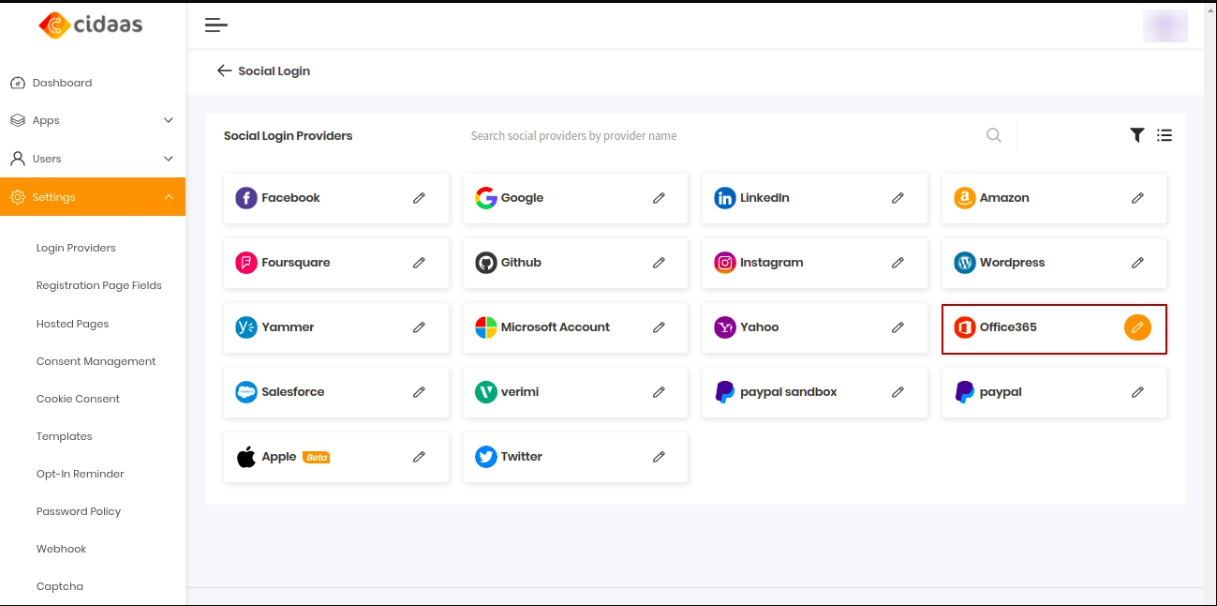
Log in to cidaas Admin portal. Navigate to cidaas Admin dashboard -> Settings -> Login Providers -> Social Providers -> Office 365 app and select Create provider from the menu.
-
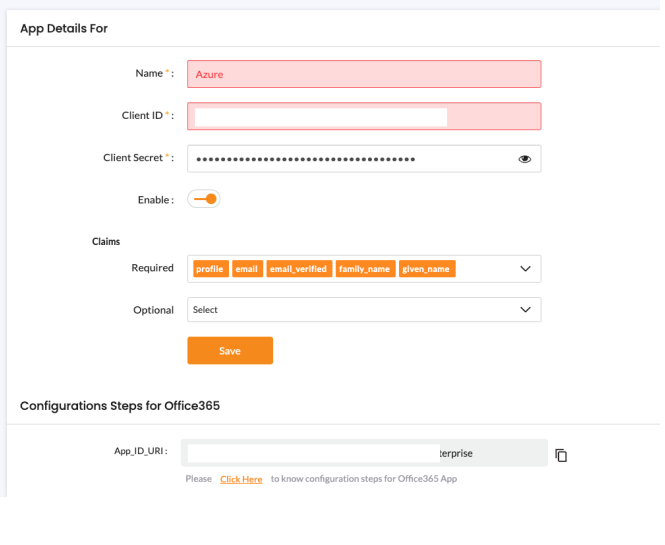
Add the required details for your app.
-
Scroll down to Configuration Steps for Office365 App which will show the App_ID_URI. Copy it.

Generate client ID and client Secret from Office 365
In this section, we'll guide you.
- to create an app in the Azure Management portal
- how to get client ID and client Secret from your Office365 app and
- how to add cidaas app_id uri to office365 application.
If you don't have an active Office365 account, create one by clicking here before proceeding.
-
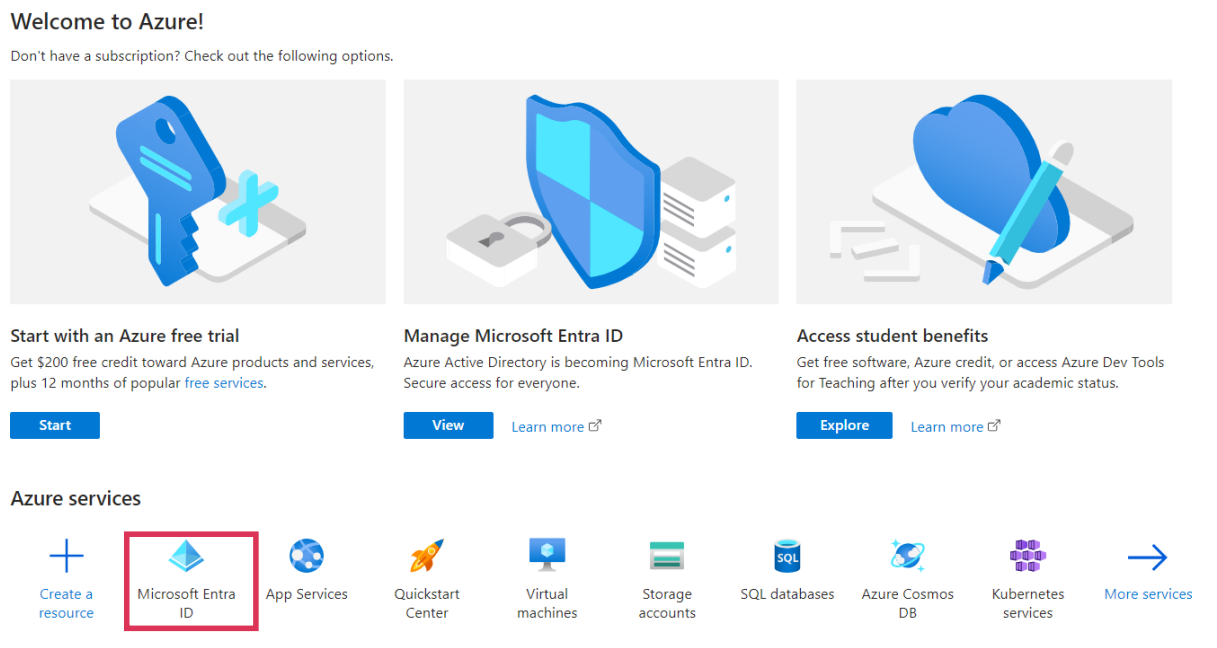
Log in to your Office 365 account and navigate to Azure Management portal, then click on the Microsoft Entra ID icon under Azure services.
Kindly click on the More services, if you are not able to find Microsoft Entra ID in your favorites.
-
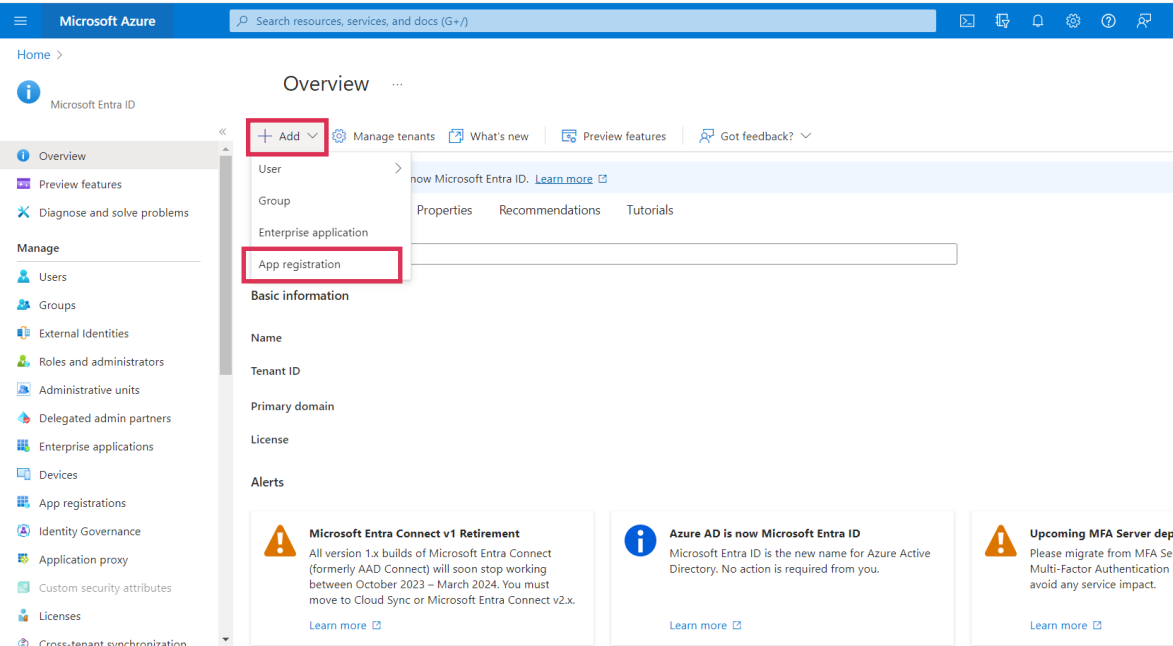
Click on the Add new > App registration.
-
Enter your app details in the Register an application.

-
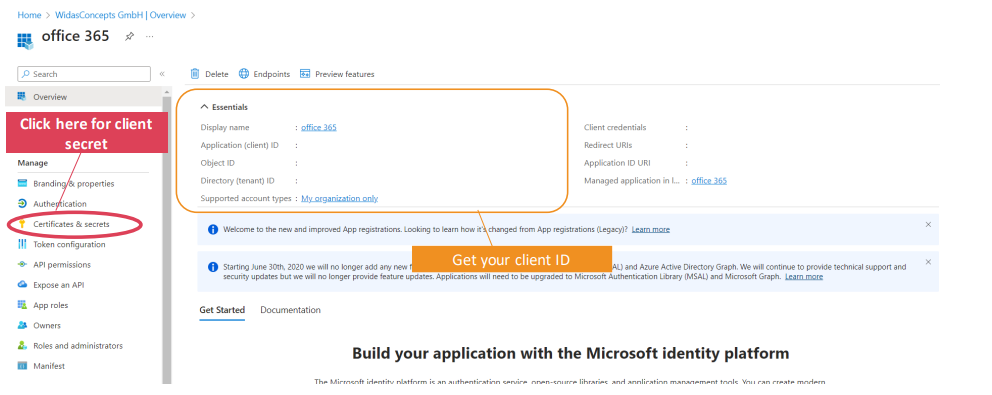
On successful registration of the app, you'll get the client ID for your application. Copy or make note of this client ID.
-
To get a client Secret, choose the Certificates and Secrets menu, and then click on the New Client Secret button to generate a new client secret for your application. Once generated, Copy or make a note of the Client Secret.

Note : Once a client secret is generated, copy it immediately, as it is not possible to copy it later.
- Let's move to the cidaas setup section above.
cidaas setup
Configure Social Provider Setup in cidaas
In this section, you'll find steps on how to add client ID and client Secret obtained from your Office365 account into your cidaas application and how to choose cidaas client applications for which you want to enable Office365 as a social provider.
-
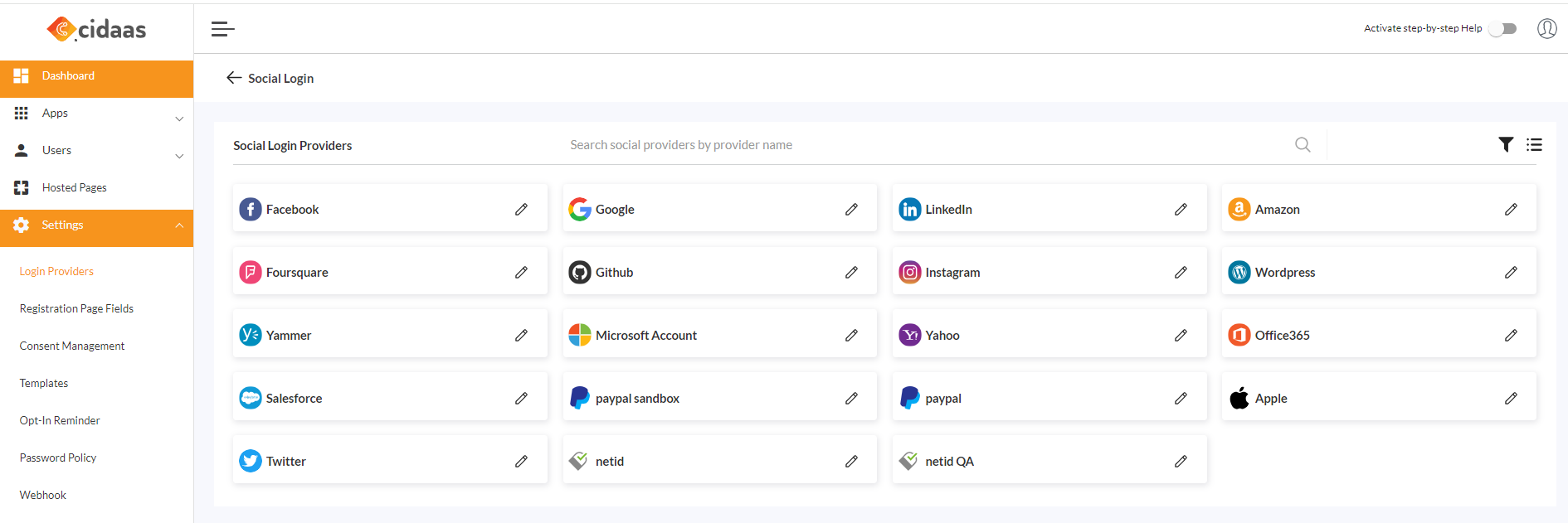
Now, navigate to cidaas Admin dashboard -> Settings -> Login Providers -> Social Providers.
-
Click on Office365 --> Create provider, enter the required details, and save.
- Enter client ID and client Secret acquired from the Office 365 section into the respective fields.

-
After you save, you can select the application you want Office 365 to use as a social provider.

-
Office 365 is available as a social provider for your application.
Note : An administrator can configure single provider to more than one client.
Reference Link how to configure other providers?
Need help implementing this?
Please contact us on our Developer Support Page.