Amazon
Configuring Amazon as a Social Provider
In this section, we will show you how to provide Amazon as an option on your cidaas login page. After configuring Amazon as a social provider in cidaas, you will get a new option called
- Login with Amazon on the login page.
- Sign up with Amazon on the registration page.
On your login page.

The overall process in a nutshell would be,
- On cidaas admin portal: Get Return URL for Amazon.
- On Amazon developer console: Register Security profile.
- On Amazon developer console: Get client ID and client secret.
- On cidaas admin portal: Add the Amazon client id and client secret in cidaas application and select appropriate cidaas applications for which you want to enable Amazon.
We'll guide you through the process steps — it's pretty easy.
Amazon setup
Get Return url for Amazon
In this section, you'll find steps on how to get the Amazon Allowed return URL from cidaas admin portal.
-
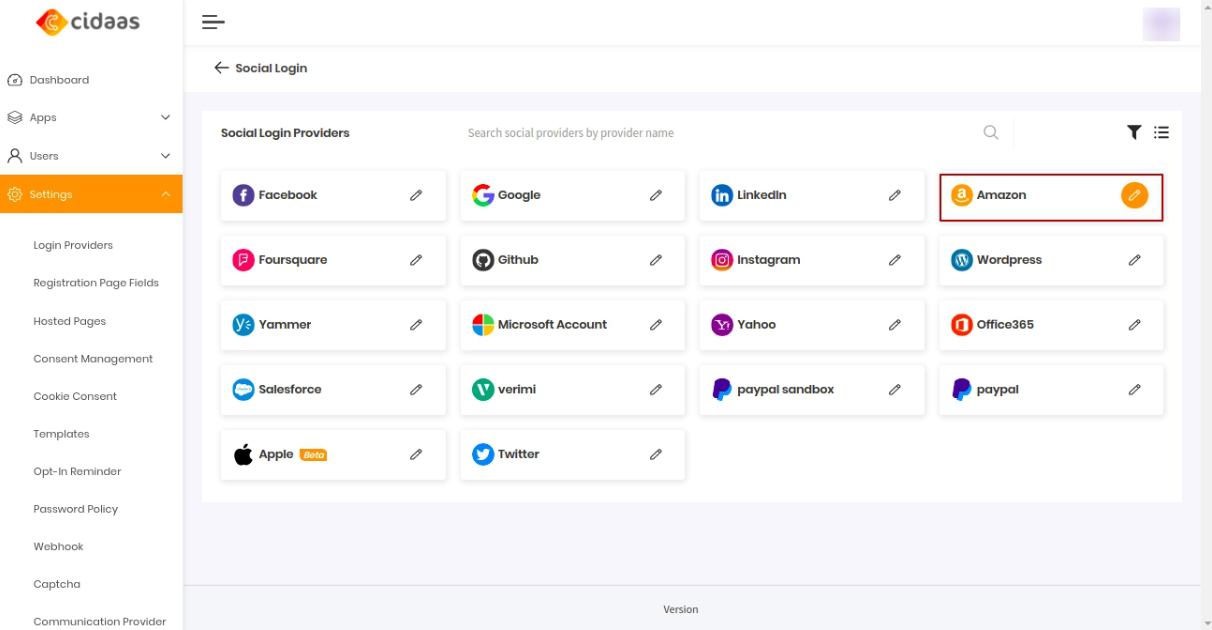
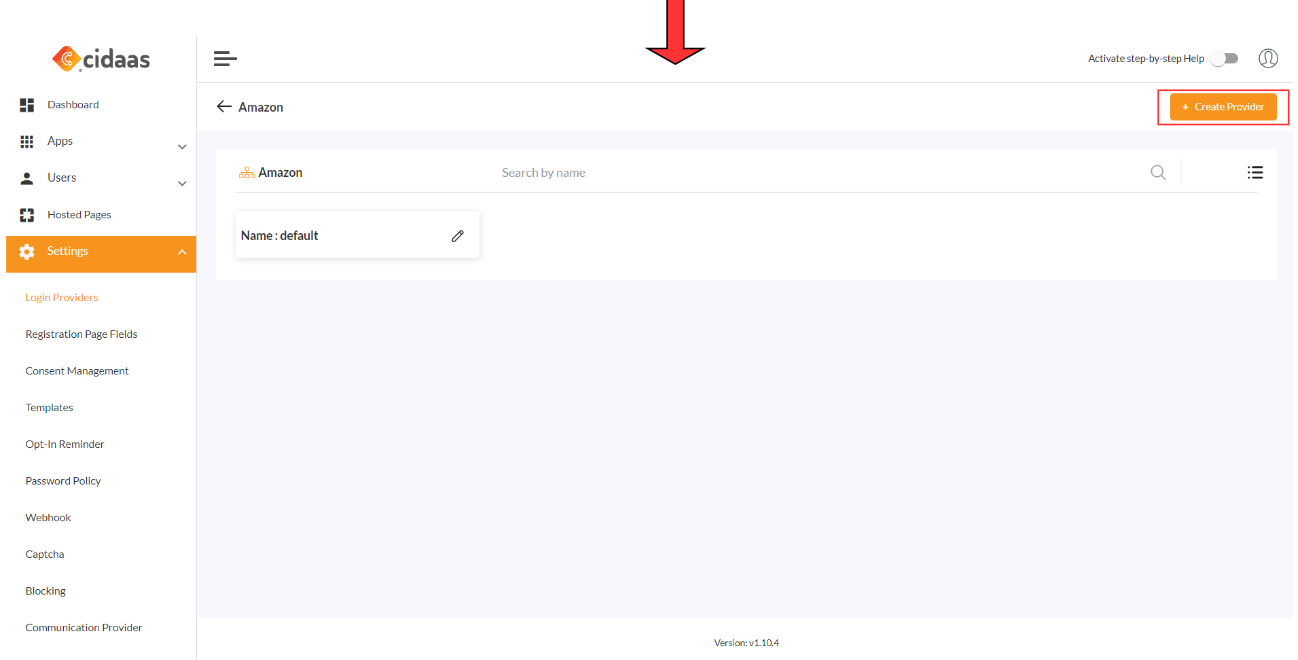
Log in to the cidaas Admin portal. Navigate to cidaas Admin dashboard -> Settings -> Login Providers -> Social Providers, select Amazon from the menu and click on Create provider.
-
Scroll down to the section "Configuration Steps for Amazon App," which will show Allowed Return URL. Copy it.

Register a new security profile in Amazon developer's console
In this section, we'll guide you through
- to create an app in the Amazon developer console
- How to get client ID and client secret from your Amazon account and
- How to include a cidaas return URL in the Amazon app.
If you don't have an active Amazon developers account, create a new account by clicking here before proceeding.
-
Navigate to the Amazon Developer Center App Console and sign in with your Amazon AWS, AppStore, or Seller Central account (or create a new account if you don't already have one).
-
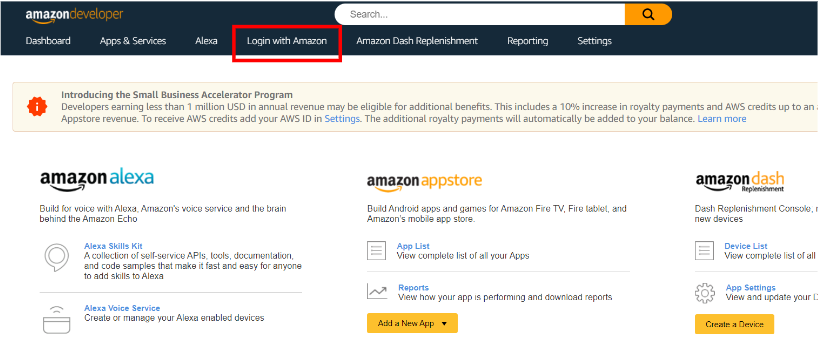
Click on Login with Amazon.
-
Click on Create a new security profile, the Security Profile Management screen opens.

-
Enter the required Application Information, your preferred logo, and click on save.
| Field | Description |
|---|---|
| Security Profile Name | The name of your app |
| Security Profile Description | A description of the app |
| Consent Privacy Notice URL | https://your_cidaas_domain/privacy |

Get your Amazon app's Client ID and Client Secret
Navigate to the developer console -> Login with Amazon console and click on OAuth2 Credentials.
You will find the Client ID and Client Secret; copy and make a note.

Enter Amazon allowed return URL
-
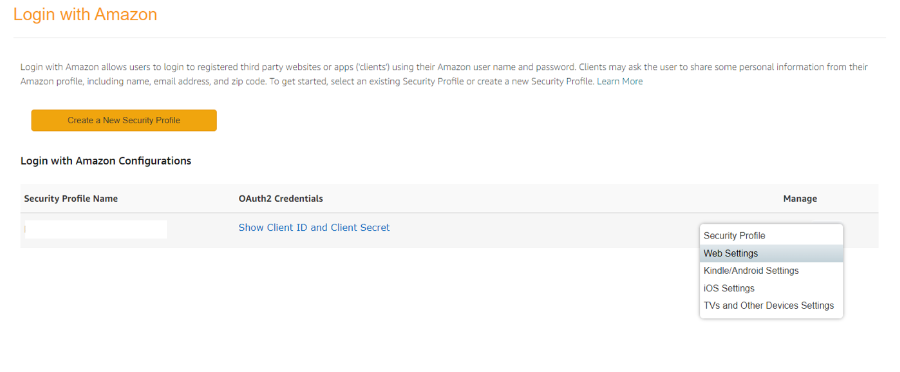
Click on Settings icon -> web settings.
-
Click on Edit, enter the Allowed Return URL and save.

Allowed Return URL is the URL copied from cidaas application.
- Let's move to the cidaas setup section above.
cidaas setup
Configure Amazon as Social Provider Setup in cidaas app
In this section, you'll find steps on
- how to add the client ID and Client Secret that you obtained from Amazon into your cidaas application and,
- how to select client applications for which you want to enable Amazon as a social provider.
-
Navigate to the cidaas Admin dashboard -> Settings -> Login Providers -> Social Providers, select Amazon from the menu, and click on Edit icon.
-
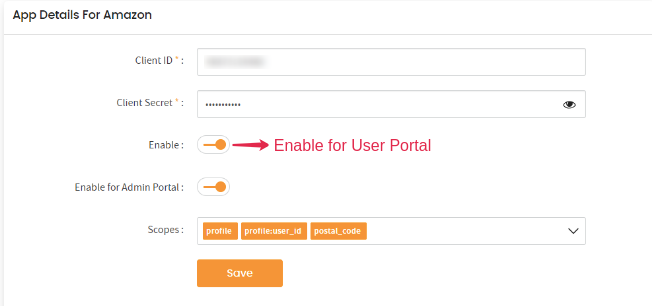
Enter the Client ID and Client secret in the corresponding fields.
Note : You can also enable/disable Amazon as social provider in cidaas admin portal as well as user portal as per your requirements.
-
After you save, you can select the application you want Amazon to use as a social provider.

-
Amazon is available as a social provider for your application.
Note : Administrator can configure a single provider to more than one client
Reference Link how to configure other providers?
Need help implementing this?
Please contact us on our Developer Support Page.