Permissions and Group Concept
Introduction
By implementing a well-structured group concept, organizations can streamline user management, ensure proper access control, and reduce the risk of unauthorized access to sensitive data. A clear permission model ensures that users only have access to the resources they need, reducing security risks and enhancing operational efficiency. This guide outlines the key principles and steps for defining user groups and assigning permissions, promoting consistency, scalability, and security.
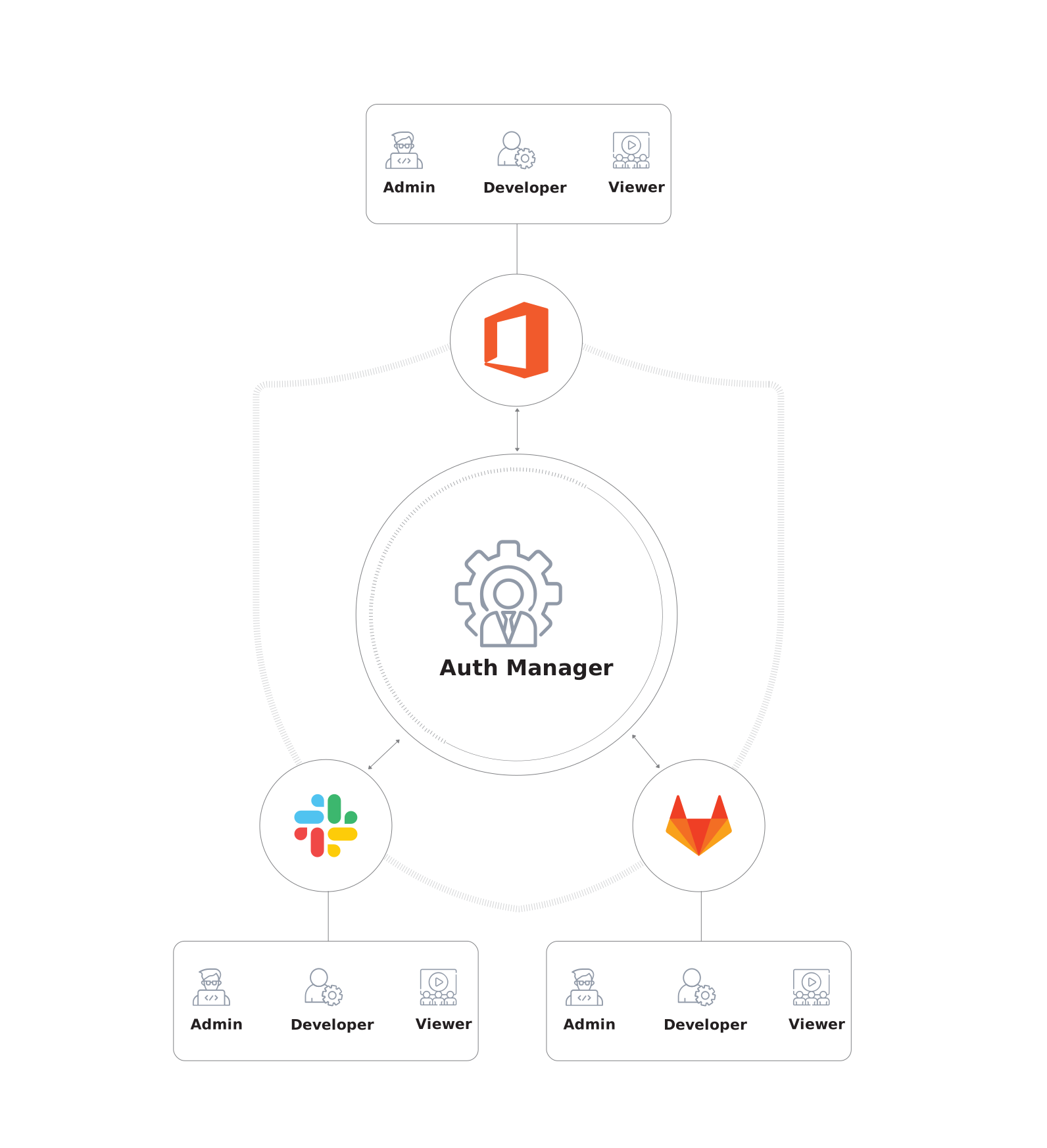
We guide through the steps on how you can achieve a structured permission concept and group with their definition and their best practice.
Objectives or Goals
The goal of this guide is to provide best practices for managing user permissions and group configurations across various systems and applications. By following these principles, organizations will achieve secure, efficient access control that adapts to different job functions and operational needs.
Principles or Key Concepts
Group Principles: Groups, Roles, and Group Types
-
Groups: Logical collections of users based on common access needs or organizational structures. Groups define which users have access to specific resources.
-
Roles: Define the level of permissions within a system or app (e.g., Admin, User, Viewer). Each role grants specific rights and capabilities.
-
Group Types: These represent a categorization of groups. For example, in a system like Slack, group types might include Slack channels, each representing a distinct group.
Apps: What is an App?
An app refers to any software or system that users need to interact with as part of their job responsibilities (e.g., Slack, GitLab, Office 365). Access to each app is managed by assigning users to groups and roles.
Security: Least Privilege Principle
The least privilege principle ensures that users only have the minimum access required to perform their tasks. This minimizes the risk of accidental or malicious misuse of resources.
Identifying Interactive Apps
For each interactive app, identify the necessary permissions and roles:
- GitLab: owner, maintainer, developer, reporter, guest.
- Office 365: plan1, plan2, plan3, etc.
- Slack: owner, member, guest.
Definition of App-Specific Roles
Define permission roles for each app:
- Identify the specific roles required for app users (e.g., Admin, Developer, Viewer).
- Map these roles to user groups based on access needs.
Describe the Characteristics of the Group
Best practice:
- Describe the attributes of each group in every app.
- Create a group type with clear, descriptive values for
groupTypeIdandgroupTypeName. - Assign allowed or required roles, and define visibility and administrative permissions for group admins.
Create a User Group for an App
Best practice:
- Create a user group for an app with clear values for
groupIdandgroupName. - Assign the group type.
- Add group-specific properties as needed.
- Set a parent group if necessary (the default parent is "root").
Multiple User Groups for the Same App
Best practice:
- In cases where you may need multiple user groups for the same app, create distinct groups with unique identifiers.
- For example, in Slack, each Slack channel may represent a unique group. You can use the channel's name as the group ID and the group type might be slack-channel-type.
- Create permission filters that define who can use the app based on their group membership.
Auth Templates: Define the Functional Profiles of a Job Position
Define which systems (apps) a person needs access to according to their role, such as basic configurations for employees in HR, software development, sales, or accounting. The Auth Manager allows you to select the apps and assign the necessary permissions (groups + roles).
Name the authentication template based on the employee’s function or task. For example, use FinancialAccountant-2024 to ensure clear version control. Once activated, a user authentication template can only be modified in the following ways:
- It has a validity period, with an optional open-ended end date.
- The status can be set to "archived," deactivating the template and preventing further modifications. This allows for easy management of template lifecycles, ensuring that older versions are deactivated when new ones are implemented.
Automating Dynamic Permissions with Slack and cidaas APIs
Best practice:
- In a dynamic system like Slack, where multiple channels exist, user permissions can be automated. This is achieved by orchestrating the cidaas and Slack APIs through Cnips.
- Define the point in your process where the Slack channel should be created.
In Slack:
Set up a flow in Cnips that listens for Slack events that trigger the creation of a new channel. Use cidaas APIs to create a user group with the Slack channel name and assign the channel creator as group admin.
In cidaas:
Define a flow that listens for events to add or remove users from Slack channels. If a user is deactivated or removed, they can also be automatically removed from Slack.
Dos and Don’ts
- Do create clear, descriptive names for groups and roles.
- Don’t assign more permissions than necessary always adhere to the least privilege principle.
- Do automate where possible to improve efficiency and security.
- Don’t let outdated templates remain active; use version control and archive old templates when new ones are introduced.
Examples or Case Studies
Consider using real-world scenarios, such as automating Slack permissions or managing GitLab access based on project roles, to illustrate the concepts above.
Tools and Resources
Auth Manager
Auth Manager by cidaas offers a comprehensive feature dashboard facilitating seamless authorization and approval requests for users. Powered by robust authorization templates, it empowers users with self-service capabilities, enabling them to efficiently request and approve authorizations.
Group Role Restrictions
Group Role Restrictions — Integration Examples covers JWT claim integration, framework examples (Spring Security, Django, OPA), match conditions, and real-time verification via POST /groups-srv/verifications. For the core feature overview, see Groups Role Restriction.
Group Management
User Roles & Groups documentation covers the process of creating, managing, and organizing user groups to control access to specific resources and applications. It involves assigning roles and permissions to groups, ensuring that users only have access to the apps and data they need based on their group membership.
Cnips
Cnips is designed to facilitate seamless connectivity between cidaas and various external applications for cidaas customers. It enables the integration, transformation, and transfer of data across multiple platforms, whether they are custom-built applications or enterprise solutions like SAP, Salesforce, and others.
Group Admin Dashboard
Group Admin Dashboard is a dedicated interface that allows administrators to manage user groups, assign roles, monitor group activities, and ensure appropriate access control across various applications, streamlining user management and security. For API documentation, see Delegated Group Management API.