Communication Templates
Core Architecture
cidaas organizes communication templates hierarchically:
┌─────────────────────────────────────────────────────────────────┐
│                    TEMPLATE ARCHITECTURE                          │
├─────────────────────────────────────────────────────────────────┤
│                                                                  │
│  ┌──────────────┐                                               │
│  │ TemplateType │  Defines:                                     │
│  │              │  - templateKey (e.g., WELCOME_USER)          │
│  │              │  - allowed communication methods             │
│  │              │  - available attributes (system + custom)      │
│  └──────┬───────┘                                               │
│         │                                                        │
│         │ defines structure                                     │
│         ▼                                                        │
│  ┌──────────────┐                                               │
│  │   Template    │  Contains:                                   │
│  │               │  - subject (optional)                        │
│  │               │  - content (HTML/text)                        │
│  │               │  - locale (en, de, fr, etc.)                 │
│  │               │  - enabled/disabled                           │
│  └──────┬───────┘                                               │
│         │                                                        │
│         │ belongs to                                             │
│         ▼                                                        │
│  ┌──────────────┐                                               │
│  │ TemplateGroup │  Organizes:                                  │
│  │  (default)    │  - multiple templates                        │
│  │               │  - communication provider settings           │
│  │               │  - default locale                            │
│  └──────────────┘                                               │
│                                                                  │
└─────────────────────────────────────────────────────────────────┘
Built-in Template Groups
cidaas provides two built-in template groups:
default- Contains pre-configured templates for all cidaas use casesdeveloper- Empty template group for custom, non-cidaas communications
Following chart shows how templates are grouped in a template group. A template is typed by a TemplateType.
How Template Selection Works
When cidaas needs to send a notification, it follows this selection process:
-
Identify TemplateGroup: Uses the app's assigned TemplateGroup (or
defaultif none assigned) -
Match TemplateType: Finds the TemplateType matching the requested
templateKey(e.g.,WELCOME_USER) -
Select Template: Chooses the specific Template that matches:
templateKey(from TemplateType)locale(user's language preference or app default)communicationMethod(email, SMS, IVR, or push)enabled: true(only active templates are used)
-
Render Content: Populates template placeholders with:
- System attributes: Default cidaas user data
- Custom attributes: Custom fields (if defined in TemplateType)
- Context attributes: Request-specific data
-
Send to Provider: Passes rendered content to the communication provider configured in the TemplateGroup
Example: For a welcome email in English:
- TemplateGroup:
default - TemplateType:
WELCOME_USER - Template:
WELCOME_USER+en+email - Provider: Email provider configured in
defaultTemplateGroup
cidaas provides a pre-seeded default TemplateGroup which provides templates in English and German for all cidaas template types.
Info
You can add further
localesto the template group when you select a new locale. This will create all templates for this locale by copying from the default locale.
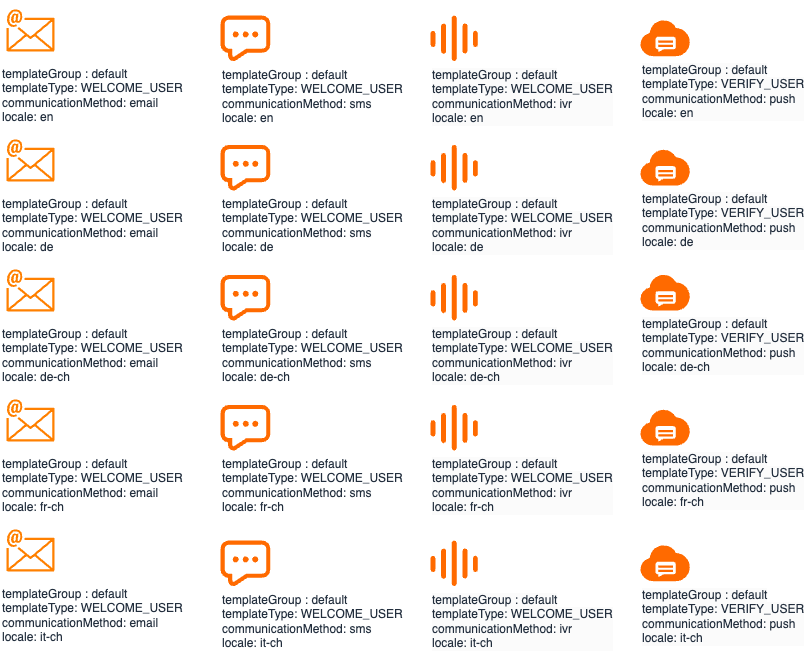
The following graphic shows a section of templates to illustrate the symmetry of the communication templates.
Template Types
A Template Type specifies the basic properties, behavior and usage of a Template.
User Attributes
A template type defines the basic properties, behavior and usage of a template. It is important for you that the “user” attributes that cidaas provides for communication are specified in a template type. These can then be used in the communication, usually in the template.
- systemAttributes are all the attributes that cidaas provides by default
- customAttributes are custom fields that you may have defined in the field setup. If you want to use these in communication, then they must be added to the TemplateType.
Good to Know
If you use customAttributes in a template, you should make sure that they are set for the user at the time of communication. Otherwise, the communication may be displayed incorrectly.
default Template Types
cidaas uses the following template keys to initiate appropriate communication with the user. The communication templates for this are provided per se in German (de) and English (en).
Some Templates are optional in cidaas which means they can be enabled or disabledas per your requirements. Mandatory templates cannot be disabled.
| Template Key | Description | Deact. | Communication |
|---|---|---|---|
| AFTER_ACTIVATE_USER | This template is used to inform the user after the account has been activated | true | email,sms,ivr |
| AFTER_CHANGE_PASSWORD | This template is used to inform the user after their account password has been changed | true | email,sms,ivr |
| AFTER_DE_ACTIVATE_USER | This template is used to inform the user after their account has been deactivated | true | email,sms,ivr,push |
| INVITE_USER | This is the invitation template to motivate a user to complete sign up | false | email,sms,ivr,push |
| NEW_DEVICE | This template informs the user that a new device has been detected while the user has performed some action like login, etc. | true | email,sms,ivr,push |
| NEW_LOCATION | This template informs the user that a new location has been detected while the user has performed some action like login, etc. | true | email,sms,ivr,push |
| NOTIFY_COMMUNICATION_CHANGE | This is a notification sent out to users when they change their communication medium, i.e., phone number or email | true | email,sms,ivr,push |
| OPTIN_REMINDER | This is a template type to remind about optin to the system | true | email,sms |
| PASSWORD_RESET_BY_ADMIN | This template informs the user that their password has been reset by the admin | true | email,sms,ivr,push |
| RESET_PASSWORD | This template asks the user to proceed with password reset that they requested recently | false | email,sms |
| UN_REGISTER_USER_ALERT | This template informs ??? that the user has unregistered | true | email,sms,push |
| USER_CREATED | This template informs ??? that the user has been created | true | email,sms,ivr,push |
| USER_CREATED_VERIFY | This template informs the user who has been created to verify email using link??? | true | email,sms |
| USER_MERGE_IDENTITY_ALERT | This template informs the user that the user has been merged with a different user account which is e.g. a duplicate account | true | email,sms,push |
| USER_MERGE_VERIFY_IDENTITY | This template asks the user to verify the user merge request and confirm that it should get merged | true | email,sms,push |
| VERIFY_ACCOUNT | This template asks the user to verify their account | false | email,sms |
| VERIFY_USER | This template is used to configure and initiate user verifications | false | email,sms,ivr,push |
| WEBHOOK_FAILED | This is a template type to notify administrators at customer side about failed webhooks | true | email,sms |
| WELCOME_USER | This is a general welcome information to inform the user that they signed up successfully and should take further actions | true | email,sms,ivr |
Customizing Communication Templates
Introduction
In cidaas, the default template group can be customized so that the appearance and content of the communication meet your requirements.
However, cidaas offers the option of creating your own template groups by copying the “default” template group. This can then be customized in terms of sender name, communication provider, layout and content.
Recommendations
- Customize the default template group and templates so that they follow your corporate style
- Create a separate template group for brand-specific layouts
Communication Template Selection
Notifications can be sent via different communication channels if necessary. This depends on various factors:
- Which communication channels are available at the time of notification to communicate with the user? - e.g. email address, phone number of the user or does the user have a cidaas Authenticator App
- What is the reason for the notification?
- for user verification, the security of the communication channel should be considered - in cidaas this is linked to the verification procedure and can therefore be deactivated
- Some notifications can be deactivated. These settings should be made first, as they are specific to communication templates. In addition, care should be taken to ensure that they are applied uniformly to all locales and, if necessary, all template groups
- From which client is the communication initiated? In cidaas a Template Group gets assigned to the App hence clients may use different communication templates
Branding
Sender Settings
Sender Name, Sender Address and setting of default locale you can specify in the Template Group
Layout and Content
Communication templates can be designed according to your own preferences.
- The subject and content can be customized according to your own requirements, although the purpose of the communication should always be the main focus.
- The layout, especially for rich text formats, should be designed so that it can be displayed appropriately in any email system, for example.
- For country and language customizations, all templates for a language are copied into a selected locale (such as fr-CH or just fr). This symmetrical creation ensures that all templates are available in all languages.