TOTP (Verification)

This is a technical introduction how you can implement the Enrollment for TOTP by simply following the below steps.

What is TOTP

TOTPs are so-called time-based one-time passwords, a few-digit code that is generated on the authenticator app for a fixed duration of time. The UI will show the box to enter the TOTP. The user should get the TOTP from the authenticator app on their personalised device (mobile) and enter it. On successful verification, we can proceed with the authentication.

You can integrate it in any app, even your own apps, the user is already using and equip it to an Authenticator.
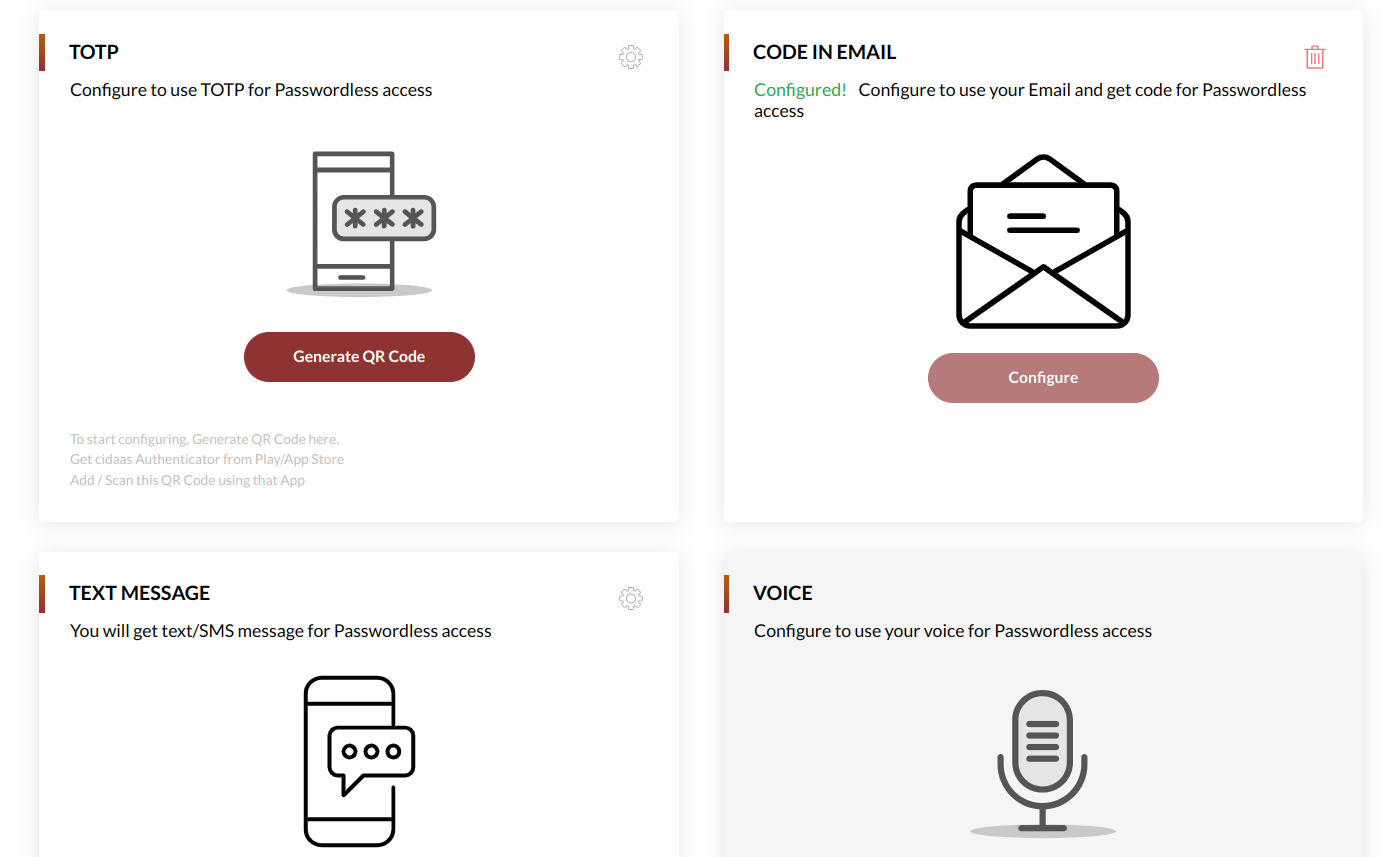
totp-enrollment.png

When is a user able to configure TOTP

CriteriaExampleConfiguration
User Verification SetupAs soon as user registers in cidaas authenticator app and enrolls TOTP as one of the authentication mechanism.
Allowed Verification MethodsThe verification method, the user want to setup, must be activated for your instance. It is a global setup.mfa-setup.png

Understanding the Flow and APIs

APIDescriptionLink
Get available verification methodsTo display and allow the user to configure the available verification methods.Link to API
Enrollment InitiationThe Enrollment of a user via authenticator app, will provide the URL that is shown e.g as a QR Code in the default user profile.Link to API
Enrollment StatusThis will allow to verify the enrollment status in the User Profile, to determine when to continue the enrollment completion.Link to API
Add friendly Device NameIn case of using device authentication methods like FIDO2, you can add a user-friendly name.Link to API

Step 1: Allow TOTP in your Instance

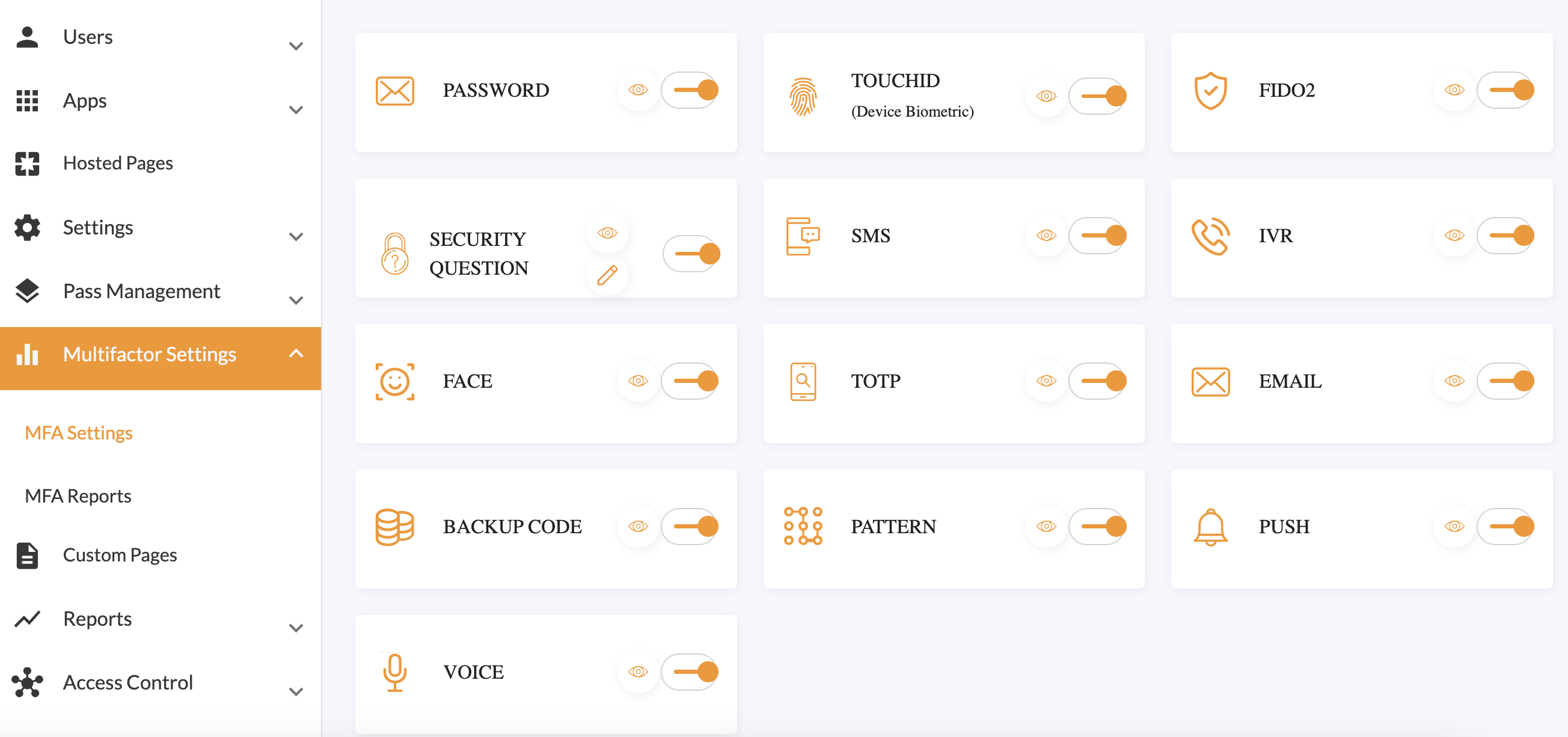
In your Verification Setup you need to allow that TOTP is enabled. Thereby you can change your existing setup, navigate to Multifactor Settings > Enable TOTP.

mfa-setup.png

Step 2: Present Verification Methods

The first page for enrollment should present all verification methods available. totp-enrollment.png

Thereby you can use the below query to retrieve the available methods.

curl 'https://domain/verification-srv/config/list' \
-H 'Authorization: Bearer eyJhbGciOiJxxx2Og' \
-H 'cache-control: no-cache' \
-H 'content-type: application/json' \
--compressed

The API returns all available methods as array:

[ 
{
"verificationType": "TOTP",
"active":true
},
{
"verificationType": "TOUCHID",
"active": true,
},
]

It returns a verificationType which can be used as input variable (path parameter) for the API in Step 3.

Step 3: Initiation of Enrollment

To start the enrollment, a QR Code will be displayed to the user. The QR code

totp-qr-code.png

The CURL command to initiate the enrollment will accept totp as path parameter. Thereby you are defining the method to configure. Based on the token the user will be identified.

curl 'https://domain/verification-actions-srv/setup/{method}/initiation' \
-H 'accept: application/json, text/plain, */*' \
-H 'accept-language: en-US,en;q=0.9' \
-H 'authorization: Bearer eyJhbGciOiJSUzI1NiIsImtpZCI6ImRiMDxxxH3CCQAZ246TjbEZvqQkNy_CM9YARxW7geGevv2Og' \
-H 'content-type: application/json' \
--data-raw '{"deviceInfo":{"deviceId":"","location":{"lat":"","lon":""}}}' \
--compressed

Using the response you can construct the QR-Code based on the below template.

`otpauth://totp/tenant_name:given_name family_name?t=type&d=given_name family_name&issuer=tenant_name&tk=tenant_key&l=logoURL&sub=sub&cid=client_id&burl=baseURL&eid=exchange_id`;

The response from the api contains exchange_id, sub and authenticator_client_id which is required as input.

{
"exchange_id": {
"exchange_id": "d5edcec1-d306-4cb8-8650-a3eb0330084d",
"expires_at": "2024-01-12T21:12:30.108Z",
},
"authenticator_client_id": "532542d2-c6b8-4921-86b6-bb1da13f941b",
"sub": "da65eb32-d460-4355-8b94-ee061896712f",
"status_id": "04dca6fd-2cd7-4a9d-9d94-851be71d6344"
}

The final QR Code Link based on the above input, looks like this:

`otpauth://totp/demo:Poca Hontas?t=totp&d=Poca Hontas&issuer=domain&tk=cidaas-demo-prod&sub=da65eb32-d460-4355-8b94-ee061896712f&cid=532542d2-c6b8-4921-86b6-bb1da13f941b&burl=https://domain&eid=d5edcec1-d306-4cb8-8650-a3eb0330084d`;

It returns exchange_id that indicates you have successfully enrolled TOTP.

Step 4: Complete Enrollment

Finally the user will be presented with the enrollment success popup

totp-success.png

Developer Perspective

This Implementation Guide is based on the default demo pages which is using a angular framework based on Typescript. It can be implemented in any other programming language as well.

As a first step you will be redirected to the login&security page. This Section starts to show the verification methods:

totp-enrollment.png

Step 1: Present Verification Methods

The first page for enrollment should present all verification methods available. totp-enrollment.png

Thereby you can use the below query to retrieve the available methods.

  getMFAList(): Observable<IEnabledMFAResponse> {
return this.http.get<IEnabledMFAResponse>(this.baseUrl+ '/verification-srv/config/list', ({headers: URLHelper.getHeaders()}));
}

The API returns all available methods as array:

[ 
{
"verificationType": "TOTP",
"active":true
},
{
"verificationType": "TOUCHID",
"active": true,
},
]

It returns a verificationType which can be used as input variable (path parameter) for the API in Step 3.

Step 3: Initiation of Enrollment

To start the enrollment, a QR Code will be displayed to the user. The QR code

totp-qr-code.png

The CURL command to initiate the enrollment will accept totp as path parameter. Thereby you are defining the method to configure. Based on the token the user will be identified.

  let mfaData:IMFAData = setupVerification(type: string, payload: ICommonPayload): Observable<ICommonMFAResponse> {
return this.http.post<ICommonMFAResponse>(this.baseUrl + '/verification-srv/v2/setup/initiate/totp', payload, ({headers: URLHelper.getHeaders()}));
}

Using the response you can construct the QR-Code based on the below template.

`otpauth://totp/tenant_name:given_name family_name?t=type&d=given_name family_name&issuer=tenant_name&tk=tenant_key&l=logoURL&sub=sub&cid=client_id&burl=baseURL&eid=exchange_id`;

The response from the api contains exchange_id, sub and authenticator_client_id which is required as input.

{
"exchange_id": {
"exchange_id": "d5edcec1-d306-4cb8-8650-a3eb0330084d",
"expires_at": "2024-01-12T21:12:30.108Z",
},
"authenticator_client_id": "532542d2-c6b8-4921-86b6-bb1da13f941b",
"sub": "da65eb32-d460-4355-8b94-ee061896712f",
"totp_secret": "OVKTIPC2EYVFOVCLMU5UI5Z4IA3VCR2G",
"status_id": "04dca6fd-2cd7-4a9d-9d94-851be71d6344"
}

The final QR Code Link can be created e.g. using this code snippet:

 _constructQRData = (status: IMFAData, tenantInfo: ITenantInfo, type: string): string => {
let url = `otpauth://totp/${tenantInfo.tenant_name ? tenantInfo.tenant_name : '-'}:-?t=${type}&d=-&issuer=${
tenantInfo.tenant_name ? tenantInfo.tenant_name : '-'
}&tk=${tenantInfo.tenant_key ? tenantInfo.tenant_key : '-'}&l=${tenantInfo.logo_uri ? tenantInfo.logo_uri : '-'}&cid=${
status.authenticator_client_id ? status.authenticator_client_id : '-'
}&burl=${tenantInfo.base_url ? tenantInfo.base_url : '-'}&eid=${
status.exchange_id?.exchange_id ? status.exchange_id?.exchange_id : '-'
}`;
return url;
};

It returns a exchange_id which can be used as input variable (path parameter) for the API in Step 4.

Step 4: Check of Enrollment Status

Now, we are waiting for the users action, and the user performing the TOTP on his phone. This waiting state requires a polling. The recommended time interval is 4 seconds.

  checkSocketStatus(statusId: string): Observable<ISocketResponse> {
return this.http.get<ISocketResponse>(this.baseUrl + 'verification-srv/verificationstatus/' + statusId, {}, ({headers: URLHelper.getHeaders()}));
}
APIDescriptionLink
Check the authentication statusCheck the current status of the authentication request and it has to be polled continuously. Link to API

The API returns a status which can be

StateDescription
INITIATEDThe initiated status will show up as long as you are showing the QR Code. When the QR Code was scanned you should change the UI, so that it is clear there is no further action required
SCANNEDAfter the user scanned the code, the state will change to SCANNED
ENROLLEDThe ENROLLED state will show as soon as the user successfully completed the enrollment on the authenticator app.
{
"status": "INITIATED",
"id": "da552e03-cfc2-4461-92d3-f05b5e488a6c",
"sub": "da65eb32-d460-4355-8b94-ee061896712f",
"type": "TOTP",
}
{
"status": "SCANNED",
"id": "da552e03-cfc2-4461-92d3-f05b5e488a6c",
"sub": "da65eb32-d460-4355-8b94-ee061896712f",
"type": "TOTP"
}
```json
{
"status": "ENROLLED",
"id": "da552e03-cfc2-4461-92d3-f05b5e488a6c",
"sub": "da65eb32-d460-4355-8b94-ee061896712f",
"type": "TOTP",
"ph_id": "79e52278-80f4-488f-8adc-5ef3d4c4869d",
"device_id": "dd7e81392ff7bbd3"
}

It returns a device_id and ph_id when status is ENROLLED. This is required for the user-friendly name Step 5.

Step 5: Enrollment Completion Success

Finally the user will be presented with the enrollment success popup

totp_success.png

Need Support?

Please contact us directly on our support page